Best SSD for a NAS: Cache, Pools and What Flash Really Costs
Flash costs several times what mechanical storage costs per usable terabyte, so SSDs belong in a NAS for small-file and random workloads rather than for bulk capacity. The Samsung 870 EVO 2TB at $399.99 is the best SSD for most NAS pools, and a WD Red SA500 2TB is the pick where the slot is M.2 SATA. Before buying an NVMe cache drive, check whether your model allows storage pools on M.2 at all, because many restrict those slots to cache only.
Start with the number that decides most of this page. Flash costs roughly 5 times what mechanical storage costs per terabyte at the cheapest end of each, which is why an SSD in a NAS is a targeted tool rather than a default. It earns its place on small-file and random workloads that mechanical drives handle badly, and it loses badly on the bulk capacity that most home arrays exist to hold.
Three picks below, then the cost arithmetic, then the part that saves people the most money: an honest look at whether a cache drive will do anything at all on your workload.
Best SSDs for a NAS by role
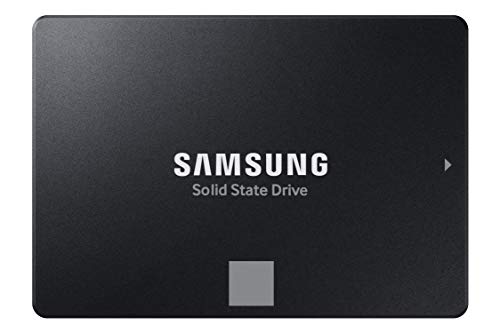
Samsung 870 EVO 1TB SATA SSD
A known-good SATA SSD with a long track record in always-on machines. Check the price per terabyte before you buy this size, because the 2 TB is frequently better value.
Best for: A single cache or application volume rather than bulk storage.
Check price
Samsung 870 EVO 2TB SATA SSD
SATA caps at roughly 560 MB/s, which is still more than a 2.5GbE network can carry, so the interface is rarely the limit in a home NAS.
Best for: An all-flash array where silence and idle power matter more than raw speed.
Check price
WD Red SA500 2TB NAS SSD (M.2 2280)
Rated for a much higher drive-writes-per-day figure than a desktop SSD, which is what caching duty actually demands.
Best for: A write cache that will be hammered daily. Overkill as a plain storage volume.
Check pricePrices change often, confirm on Amazon. As an Amazon Associate we earn from qualifying purchases.
What does flash actually cost per terabyte?
Cost per terabyte is the only figure that matters for bulk storage, because a NAS serving large files is limited by the network long before it is limited by the drive. Here is every verified drive on this site, flash and mechanical together, on that single measure.
| Drive | Medium | Capacity | Price | Cost per TB |
|---|---|---|---|---|
| Seagate IronWolf 8TB NAS HDD (ST8000VN004) | Mechanical | 8 TB | $289.99 | $36.25 |
| Seagate IronWolf Pro 16TB NAS HDD (ST16000NT001) | Mechanical | 16 TB | $579.99 | $36.25 |
| Seagate IronWolf Pro 12TB NAS HDD (ST12000NT001) | Mechanical | 12 TB | $438.00 | $36.50 |
| WD Red Plus 12TB NAS HDD (WD120EFGX) | Mechanical | 12 TB | $459.99 | $38.33 |
| Seagate Exos 20TB Enterprise HDD (ST20000NM002H) | Mechanical | 20 TB | $799.99 | $40.00 |
| WD Red Pro 24TB NAS HDD (WD241KFGX) | Mechanical | 24 TB | $1,059.99 | $44.17 |
| Seagate IronWolf 4TB NAS HDD (ST4000VN008) | Mechanical | 4 TB | $219.00 | $54.75 |
| Samsung 990 EVO Plus 2TB NVMe SSD | M.2 2280 NVMe | 2 TB | $357.49 | $178.75 |
| Samsung 990 PRO 2TB NVMe SSD | M.2 2280 NVMe | 2 TB | $388.00 | $194.00 |
| Samsung 870 EVO 2TB SATA SSD | 2.5 inch SATA | 2 TB | $399.99 | $200.00 |
| WD Red SA500 2TB NAS SSD (M.2 2280) | M.2 2280 SATA | 2 TB | $499.99 | $250.00 |
| Samsung 870 EVO 1TB SATA SSD | 2.5 inch SATA | 1 TB | $332.16 | $332.16 |
| Synology SNV5420-400G M.2 NVMe SSD | M.2 2280 NVMe | 0.4 TB | $560.91 | $1,402.27 |
Cost per TB uses decimal terabytes as sold. Prices are the listing prices recorded at verification and change often, so confirm on Amazon. Mechanical and NAND pricing both ran well above their historical per-terabyte levels when these were checked, so treat the ratio as more durable than the absolute figures. The full mechanical ladder is on the cost per terabyte chart.
Now apply it to a real array, because per-drive prices understate the gap once parity is involved.
| Build | Usable, single parity | Drives | Total | Cost per usable TB |
|---|---|---|---|---|
| Four 8 TB mechanical drives | 24 TB | 4 | $1,159.96 | $48.33 |
| Four 16 TB mechanical drives | 48 TB | 4 | $2,319.96 | $48.33 |
| Four 2 TB SATA SSDs | 6 TB | 4 | $1,599.96 | $266.66 |
| Eight 2 TB SATA SSDs | 14 TB | 8 | $3,199.92 | $228.57 |
Usable capacity under RAID 5 or RAIDZ1, which is (n minus 1) times the smallest drive. Your NAS will report each figure about 9.05 percent smaller because it counts in binary tebibytes. Check any layout against the RAID capacity calculator.
Eight 2 TB SSDs cost more than four 16 TB mechanical drives and deliver less than a third of the capacity. That is the whole case against all-flash for a home archive, and no amount of sequential throughput changes it, because a mechanical array already saturates every network link most homes own.
Where does an SSD genuinely earn its place?
Flash wins on operations per second, not on throughput. A mechanical drive has to move a physical head, so it manages perhaps 100 to 200 random operations per second while an SSD manages tens of thousands. Every workload where flash transforms a NAS is a workload made of many small operations.
- Virtual machine images and containers. Random reads and writes across a large file, which is the worst case for a mechanical array and the best case for flash.
- Databases and mail stores. Same pattern, plus constant small writes.
- Photo catalogue browsing. Thumbnails and metadata are thousands of tiny reads, which is why a catalogue can feel slow on an array that streams 4K without effort.
- Active editing scratch space. A small fast pool for work in progress, with the finished output written back to the mechanical array.
- The system volume on a DIY build. A small SSD for the operating system keeps the array free to spin down and costs almost nothing.
Notice what is not on that list: streaming media, file sharing, backups and archives. Those are large sequential reads and writes, and a single 8 TB mechanical drive already sustains 150 to 260 MB per second, which is more than gigabit can carry. See hard drives against SSDs for a NAS for the full comparison.
Will an NVMe cache actually make my NAS faster?
A read cache stores recently or frequently read data on fast storage so a repeat read never touches the array. The word doing all the work in that sentence is repeat. A household that streams a different film every evening reads each file once, gets no cache hits at all, and sees no benefit from any amount of cache.
Three things are true at once, and vendors tend to mention only the first:
- Cache helps genuinely repetitive workloads a lot. A shared photo catalogue that four people browse, or a set of virtual machines with overlapping working sets, hits cache constantly.
- More memory often beats a cache drive. The operating system already caches metadata and hot blocks in RAM, and RAM is faster than any NVMe drive. Going from 4 GB to 16 GB with a 16 GB SODIMM is frequently the better hundred dollars.
- A write cache must be mirrored to be safe. Acknowledging a write before it reaches the array means an unmirrored cache drive failing at the wrong moment loses data the array never received. That means buying two drives, not one.
Endurance deserves a specific check for the write-cache role. Every write to the array passes through the cache, so annual write volume lands on that one drive. Against the ratings in the table above, an archive workload will never approach the limit and a busy write cache on a virtualisation host can consume it in a few years. Match the TBW figure to the job.
SATA or NVMe, and which slot?
The form factor decides the role more than the speed does. A 2.5 inch SATA SSD occupies a drive bay, which means it competes with a mechanical drive for the space that holds your capacity. An M.2 drive sits in a dedicated slot and costs you no bays at all.
That leads to the one genuine trap in this category. Many NAS models restrict their internal M.2 slots to cache duty and will not build a storage pool on them, and it is a firmware decision rather than a hardware limit, so two boxes with identical slots can behave differently. Check the specific model on its specification page before buying a large NVMe drive, because a 2 TB drive locked into a cache role is a poor use of $388.00.
A second trap: an M.2 slot is not automatically NVMe. The WD Red SA500 M.2 is an M.2 SATA drive, which fits the same physical slot on some machines and runs at SATA speed. Read the interface, not the shape.
| Drive | Form factor | Sequential read | Endurance | Best role |
|---|---|---|---|---|
| Samsung 990 EVO Plus 2TB NVMe SSD | M.2 2280 NVMe | 7,250 MB/s | 1200 TBW | Cache, pool where allowed |
| Samsung 990 PRO 2TB NVMe SSD | M.2 2280 NVMe | 7,450 MB/s | 1200 TBW | Cache, pool where allowed |
| Samsung 870 EVO 2TB SATA SSD | 2.5 inch SATA | 560 MB/s | 1200 TBW | Pool or cache |
| WD Red SA500 2TB NAS SSD (M.2 2280) | M.2 2280 SATA | 560 MB/s | 1300 TBW | Pool or cache |
| Samsung 870 EVO 1TB SATA SSD | 2.5 inch SATA | 560 MB/s | 600 TBW | Pool or cache |
| Synology SNV5420-400G M.2 NVMe SSD | M.2 2280 NVMe | 3,100 MB/s | 500 TBW | Vendor-listed cache |
Sequential figures are the manufacturer's published interface speeds. Note that on a NAS behind even a 10 gigabit link, which carries about 1,100 MB per second, the difference between a 560 MB/s SATA drive and a 7,000 MB/s NVMe drive is invisible for sequential transfers. It shows up only in random operations. Work the link ceilings through the network throughput calculator.
Do SSDs in a NAS need power loss protection?
Power loss protection is a bank of capacitors that lets a drive finish writing its internal buffer when the power disappears. Enterprise drives have it and consumer drives generally do not. On a NAS the honest answer is that it is a second line of defence, and the first line is the one to buy: a UPS that shuts the array down cleanly before the power actually goes.
Where it becomes worth caring about is a write cache on a busy array, because that drive is holding acknowledged writes the array has not yet received. If that is your configuration, mirror the cache and put the machine on a UPS regardless. Size the battery on the UPS runtime calculator.
Who should not buy the expert pick?
The WD Red SA500 2TB at $499.99 is the highest-endurance drive here at 1,300 TBW and is built for exactly the sustained-write cache role that consumer drives struggle with. If you are buying it as a read cache for a media library, you are buying the wrong thing. Media libraries do not repeat reads, the cache will sit cold, and the same money spent on a mechanical 8 TB drive adds capacity you will certainly use.
Buy flash when you can name the workload it is fixing. Buy memory before you buy cache. And buy capacity before either, because capacity is what home arrays actually run out of.
Related reading
- Hard drives against SSDs for a NAS for the head to head
- How to choose NAS drives for the mechanical side of the decision
- Best NAS hard drives for the bulk capacity tier
- Network throughput calculator to check whether speed is even your bottleneck
- Cost per terabyte chart for the full pricing picture
Deciding on a specific model? We review the Samsung 870 EVO 4TB SATA SSD review and Samsung 990 PRO 2TB NVMe SSD review in full.
Frequently asked questions
Should I use SSDs instead of hard drives in a NAS?
For bulk storage, almost never. Flash costs several times what mechanical storage costs per terabyte, and a NAS mostly serves large sequential files where a single mechanical drive already outruns a gigabit network. Where flash genuinely wins is small-file and random workloads: virtual machine images, databases, container storage and photo catalogue browsing, all of which mechanical drives handle badly at any capacity.
Does an NVMe cache make a home NAS faster?
Usually far less than expected. A read cache only helps data you read repeatedly, and a household streaming different films every evening has almost no cache hits. A write cache helps bursty writes and needs mirrored drives to be safe. Adding memory to the NAS often produces a bigger real improvement than a cache drive, because the operating system already caches metadata in RAM.
Can I build a storage pool on the M.2 slots?
It depends entirely on the vendor and the model. Some units allow full storage pools on internal M.2 slots and others restrict them to read or write cache only, which is a firmware decision rather than a hardware limit. Check the specific model before buying an expensive drive for the role, because a 2 TB NVMe drive locked to cache duty is a poor use of the money.
Do NAS SSDs need to be special NAS models?
Less than mechanical drives do. There is no shingled recording problem in flash and no vibration concern, so a good consumer SATA SSD is a reasonable pool member. What NAS-branded models add is a higher endurance rating and sometimes power loss protection, which matters for write-heavy cache roles where the drive absorbs constant small writes rather than sitting mostly idle.
What endurance rating does a NAS SSD need?
For a storage pool holding documents, photos or media, very little: those workloads write a few terabytes a year against ratings of 600 to 1,300 TBW. For a write cache the calculation is different, because every write to the array passes through the drive, and a busy cache can consume its rating in a few years. Check the TBW figure against your expected annual writes before choosing a cache drive.
Is an all-flash NAS worth it?
For most homes the capacity is the problem rather than the price of the box. An eight-bay all-flash unit filled with 2 TB SSDs gives 14 TB usable under double parity for several thousand dollars, which four mechanical drives deliver for a fraction of the cost. All-flash makes sense for editing suites, virtual machine hosts and anyone whose working set is small, fast and constantly rewritten.
How we choose: we compare published manufacturer specifications, drive datasheets, published reliability statistics and verified owner reviews. We do not test hardware in person, and we are not tied to any NAS vendor. Capacity and power figures here are researched guidance, not a warranty. RAID protects against drive failure, not against deletion, ransomware, fire or theft, so keep verified backups regardless of what any calculator tells you.
Working out your own cost per usable terabyte? The Home Server Build Planner is the paid version of these pages: 8 printable worksheets you fill in with your own numbers, plus the full PDF, $29.